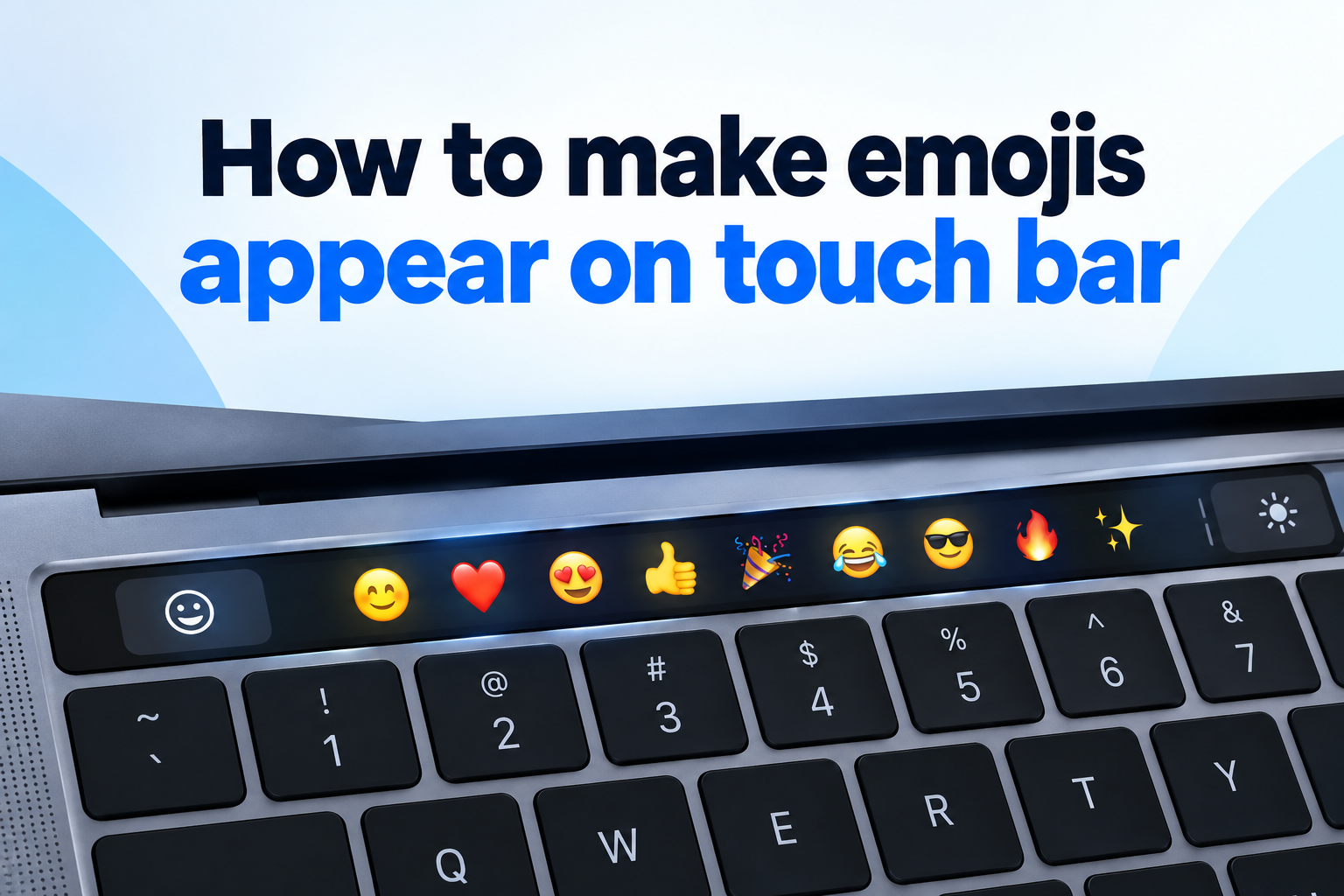
If you own a MacBook Pro with a Touch Bar and love using emojis, learning how to make emojis appear on touch bar can save you time and make typing much more fun. Instead of opening the character viewer or remembering keyboard shortcuts, you can tap colorful emojis directly above your keyboard while chatting, writing emails, or posting on social media. Many users do not realize this feature is already built in but simply needs the right settings enabled. In this complete guide, you will learn what the Touch Bar emoji picker is, which Mac models support it, how to enable and customize it, how to fix it when it disappears, and how to use it like a pro for faster everyday communication.
This article covers everything from basic setup steps and customization options to troubleshooting, common mistakes, best practices, real life use cases, and answers to frequently asked questions. Whether you want emojis in Messages, Mail, Notes, or third party apps, you will find clear instructions and expert tips to get your Touch Bar working exactly the way you want.
Why Touch Bar Emojis Improve Typing
Touch Bar emojis make typing faster and more expressive because they stay within reach without interrupting your workflow. Here are the main reasons Mac users enjoy this feature every day.
1. Faster Access Without Shortcuts
Touch Bar emojis let you insert faces, hearts, and symbols with one tap instead of opening menus or memorizing key combinations. This saves several seconds per message and keeps your hands on the keyboard. For frequent chatters and social media users, this small speed boost adds up quickly and makes conversations feel smoother, faster, and much more enjoyable throughout the day.
2. Stay Focused While Writing
Switching windows to find emojis can break your concentration, especially when writing emails or documents. The Touch Bar keeps emoji suggestions right above the keyboard where your eyes already look. You can stay focused on your sentence while quickly adding emotion and tone. This seamless experience helps you write naturally without losing your train of thought or creative flow.
3. Better Expression In Messages
Text alone can sometimes sound cold or unclear, but a well placed emoji adds warmth and personality instantly. Touch Bar emojis encourage you to express humor, support, excitement, and empathy in Messages, Mail, and social apps. Since they appear contextually while typing, you are more likely to use them at the right moment and make your communication clearer and friendlier.
4. Ideal For Social Media Creators
If you post captions, comments, or replies often, Touch Bar emojis help you create engaging content faster. You can tap trending symbols, reactions, and decorative emojis without leaving the text field. This is especially useful for creators who manage multiple accounts and need quick, consistent styling. The visual picker also helps you discover new emojis you might not have tried before.
5. Reduced Reliance On Character Viewer
The macOS character viewer is powerful but can feel slow when you just need one quick smiley. Touch Bar emojis provide a lightweight alternative for everyday use while still letting you open the full viewer when needed. You get the best of both worlds with speed for common emojis and depth for special characters. This balance makes daily typing more efficient and less frustrating.
6. Personalized And Fun Experience
Customizing which emojis appear on your Touch Bar makes your Mac feel more personal and enjoyable to use. You can prioritize favorites, frequently used symbols, and expressive reactions that match your style. Over time, the system also learns your habits and suggests relevant options. This personalized touch turns routine typing into a faster, more delightful, and more creative daily experience.
Check Mac Touch Bar Emoji Compatibility
Emoji support on the Touch Bar is available only on MacBook Pro models released between 2016 and 2020 that include the physical Touch Bar strip.
Newer MacBooks with Apple silicon and a full function key row do not include a Touch Bar, so they cannot show Touch Bar emojis.
You also need a recent version of macOS that supports Touch Bar customization, such as Monterey, Ventura, or Sonoma on compatible hardware.
Most built in Apple apps like Messages, Mail, Notes, TextEdit, and Pages support contextual emoji suggestions automatically when typing.
If your Mac qualifies but emojis still do not show, the issue is usually a settings choice rather than a hardware problem, which we will fix next.
How To Make Emojis Appear On Touch Bar
Follow these simple steps to enable emojis on your Touch Bar quickly. The whole process takes less than two minutes.
- Open System Settings: Click the Apple menu in the top left corner and choose System Settings to access all Mac preferences.
- Go To Keyboard Settings: Scroll down in the sidebar and select Keyboard to manage typing and Touch Bar options.
- Open Touch Bar Settings: Click the Touch Bar Settings button to see display and customization choices for your model.
- Set Touch Bar Shows: Change the dropdown to App Controls or App Controls with Control Strip depending on your preference.
- Enable Typing Suggestions: Turn on Show typing suggestions in Touch Bar so emoji predictions can appear while you type.
- Test In Messages: Open Messages or Notes, start typing an emotional word like happy or love, then tap the emoji shown.
- Customize If Needed: Use Customize Control Strip to drag the emoji or input picker icon into the Touch Bar for permanent access.
Customize Touch Bar Emoji Controls
You can arrange your Touch Bar so emojis are always one tap away. These customization options give you full control over layout and behavior.
1. Add Dedicated Emoji Button
Adding a dedicated emoji button ensures the picker is always visible even when an app does not suggest emojis automatically. Open Touch Bar settings, choose customize, then drag the emoji icon to your preferred position on the strip. Once saved, tapping it will instantly open your recent and favorite emojis in any compatible text field for fast insertion.
2. Choose App Controls Layout
The App Controls layout lets each application show its most useful Touch Bar tools, including emojis when relevant. This is ideal if you want contextual suggestions in Messages and Mail while keeping other shortcuts elsewhere. Select this option in Touch Bar settings and test it across different apps to confirm emojis appear naturally during typing without extra taps or manual switching.
3. Keep Control Strip Visible
Keeping the expanded Control Strip visible gives you quick access to brightness, volume, Siri, and input controls alongside emojis. This setup works well if you multitask and want system functions plus typing tools together. You can still tap the emoji icon to expand choices. Arrange icons carefully so the bar does not feel crowded and important buttons remain easy to press.
4. Enable Predictive Text Suggestions
Predictive text allows macOS to suggest words and matching emojis as you type, which speeds up writing considerably. Make sure Show typing suggestions is enabled in keyboard preferences. Then type words like party, sad, or celebration and watch relevant emojis appear on the Touch Bar. Tapping a suggestion replaces or supplements the word, making messages more colorful with minimal effort required.
5. Organize Favorite Emojis First
macOS remembers frequently used emojis and surfaces them first in the Touch Bar picker for quicker selection. Use your favorite smileys, hearts, and gestures regularly so the system learns your style. You can also open the full character viewer occasionally to star favorites. Over time, your Touch Bar will feel smarter and show exactly the symbols you reach for most often.
6. Adjust Touch Bar Brightness
If emojis look dim or hard to see, adjust Touch Bar brightness in System Settings under Keyboard or Control Center. Good visibility matters especially in bright rooms or outdoors where glare reduces contrast. Keep brightness at a comfortable medium to high level so colorful icons remain clear. This simple tweak prevents eye strain and makes tapping the right emoji faster and more accurate.
Fix Missing Touch Bar Emojis
If emojis suddenly disappeared from your Touch Bar, do not worry. Most causes are simple settings or software glitches that you can resolve in minutes.
1. Restart The Problem App
Sometimes a single app stops communicating with the Touch Bar and hides emoji suggestions temporarily. Fully quit the app using the menu or force quit, then reopen it and click into a text field. Start typing an emotional word to trigger suggestions again. This quick refresh resolves many isolated glitches without changing any system settings or restarting your entire Mac computer.
2. Check Keyboard And Touch Bar Settings
An accidental settings change is the most common reason emojis stop appearing on the Touch Bar. Go to System Settings, open Keyboard, then Touch Bar Settings, and confirm Touch Bar Shows is set to App Controls. Also verify that typing suggestions are enabled. Correcting these two options usually restores emoji predictions immediately across Messages, Mail, Notes, and other supported Apple applications.
3. Update macOS Software
Outdated system software can cause Touch Bar bugs, missing icons, or unresponsive suggestions. Open System Settings, choose General, then Software Update, and install any available updates. Restart your Mac after updating to ensure changes take effect. Apple frequently fixes Touch Bar stability and emoji compatibility in updates, so staying current prevents recurring problems and improves overall keyboard performance significantly.
4. Reset Touch Bar Control Strip
A corrupted Touch Bar layout can hide the emoji button even when settings look correct. Open Touch Bar customization and drag the default set back to restore original icons. Save your changes, then re add the emoji picker in your preferred spot. This reset clears hidden conflicts and gives you a clean layout. Test in multiple apps afterward to confirm emojis appear consistently and respond properly.
5. Test In Safe Built In Apps
Third party apps do not always support Touch Bar emojis, which can make it seem like the feature is broken. Test emoji suggestions in Apple apps like TextEdit, Notes, or Messages where support is guaranteed. If emojis work there but not elsewhere, the limitation is with that specific app. Check the app settings or use the character viewer as a backup for unsupported programs.
6. Restart Your MacBook
A full restart clears temporary system processes that control the Touch Bar display and input predictions. Save your work, restart from the Apple menu, then test typing after login. In most cases, emojis return immediately without further steps. If the problem persists after a restart and settings check, consider resetting NVRAM or contacting Apple support for deeper hardware diagnostics and professional assistance.
Common Touch Bar Emoji Mistakes To Avoid
Avoiding these common errors will keep your emoji picker visible, responsive, and easy to use every day.
1. Setting Touch Bar To Function Keys Only
Many users switch the Touch Bar to show only function keys for work or gaming and forget to switch back. This mode hides app controls and emoji suggestions completely. If you need function keys temporarily, use the Fn key to reveal them instead of changing the permanent setting. Keeping App Controls as default ensures emojis remain available whenever you start typing in any supported application.
2. Disabling Typing Suggestions Accidentally
Turning off typing suggestions to reduce clutter also removes predictive emojis from the Touch Bar. Users often disable this option without realizing the connection. If you miss emoji predictions, re enable suggestions in keyboard settings and test again. You can still keep autocorrect off while leaving suggestions on, giving you emoji benefits without unwanted word changes during fast typing sessions.
3. Expecting Emojis In Every App
Not all Mac apps are designed to support Touch Bar integration, especially older software and some web browsers. Expecting emojis everywhere leads to frustration when they do not appear. Instead, learn which of your daily apps support the feature and use built in alternatives elsewhere. Knowing these limits helps you build a realistic workflow and avoid wasting time on unsupported programs.
4. Ignoring macOS Updates
Skipping updates for months can leave Touch Bar bugs unfixed and cause emoji lag or missing icons. Some users delay updates fearing changes, but Apple often improves stability quietly in the background. Enable automatic updates or check monthly to stay protected. A current system ensures better compatibility with new emojis, smoother animations, and fewer unexpected Touch Bar freezes during important work.
5. Overcrowding The Control Strip
Adding too many icons to a small Touch Bar makes buttons tiny and hard to tap accurately. Users sometimes drag every available control in, burying the emoji picker among clutter. Prioritize only essential tools like emoji, dictation, brightness, and volume. A clean, spaced layout improves speed, reduces mis taps, and makes emojis easier to find when you need to add quick emotion.
6. Forgetting To Click Text Field
The Touch Bar only shows emojis when a text input area is active and the cursor is blinking. Clicking outside the field or leaving the app unfocused will hide suggestions. Always click inside Messages, Mail, or Notes before expecting emojis. This simple habit prevents confusion and helps new users understand that Touch Bar content changes dynamically based on where you are typing.
Best Practices For Touch Bar Emojis
Follow these best practices to get faster, cleaner, and more enjoyable emoji typing on your MacBook Pro.
1. Keep App Controls As Default
Keeping App Controls as your default Touch Bar mode gives you the most flexible emoji experience across different programs. Each app can show relevant tools automatically without manual switching. You will see formatting options in Pages, suggestions in Mail, and emojis in Messages. This smart adaptation saves time and keeps your workflow smooth, especially if you switch frequently between creative and communication tasks daily.
2. Combine Touch Bar With Shortcuts
The Touch Bar works best when combined with keyboard shortcuts for power typing. Use the globe key or Control Command Space to open the full character viewer for rare symbols, while relying on the Touch Bar for quick favorites. This hybrid approach covers all needs efficiently. Learning both methods ensures you never slow down, whether inserting a simple smiley or searching for a specific cultural symbol.
3. Train Suggestions With Regular Use
macOS personalizes Touch Bar suggestions based on your typing patterns and emoji history. Use emojis consistently in everyday chats so the system learns which ones you prefer. Within a week, your most used smiles, hearts, and reactions will appear first. This training effect makes the picker feel faster over time and reduces scrolling, especially for users who communicate with similar tone and vocabulary daily.
4. Keep Touch Bar Clean
Fingerprints, dust, and smudges can make Touch Bar emojis look dull and less responsive to taps. Wipe the strip gently with a soft microfiber cloth every few days. Avoid harsh cleaners or excess moisture that could damage sensors. A clean surface improves visibility of colorful icons and ensures accurate touch detection, making every emoji tap feel crisp, fast, and satisfying during long typing sessions.
5. Use Emojis With Purpose
Thoughtful emoji use improves clarity, while overuse can distract or confuse readers. Add one or two expressive symbols to support your message tone rather than replacing words entirely. In professional emails, keep emojis minimal and friendly. In casual chats, feel free to be playful. This balanced approach helps you communicate emotion effectively without overwhelming the reader or reducing your overall credibility.
6. Explore New Emoji Releases
Apple adds new emojis with major macOS updates, including fresh faces, gestures, animals, foods, and inclusive symbols. Check the character viewer after each update to discover additions. Try using them on the Touch Bar to expand your expressive range. Staying current keeps your messages modern and fun, and helps you connect better with friends who use the latest devices and messaging trends.
Practical Touch Bar Emoji Use Cases
Touch Bar emojis shine in real everyday situations. Here are practical ways different users benefit from quick tap access.
1. Everyday Texting With Friends
Chatting with friends becomes faster and livelier when you can tap laugh, heart, and celebration emojis directly from the Touch Bar. You can react instantly without pausing conversation flow. This is perfect for group chats where quick responses matter. The visual picker also helps you match the mood precisely, making casual conversations feel warmer, funnier, and more engaging with minimal typing effort required.
2. Professional Email Communication
A single friendly emoji in an email subject or greeting can soften tone and build rapport with clients. Touch Bar access lets professionals add a subtle smile or thumbs up without opening extra windows. This saves time during busy inbox sessions. Used sparingly, emojis make follow ups feel approachable while maintaining professionalism, especially in creative industries, customer support, and friendly team updates.
3. Social Media Captions And Comments
Social media managers often juggle captions, replies, and hashtags under tight deadlines. Touch Bar emojis speed up crafting eye catching posts with relevant symbols and decorative elements. You can quickly add fire, sparkles, or location pins to boost visual appeal. Faster emoji insertion means more consistent posting, better engagement, and less fatigue when handling multiple platforms throughout the entire day.
4. Student Notes And Projects
Students can use Touch Bar emojis to organize notes, highlight key ideas, and make study materials more memorable. Adding stars, checkmarks, and colored hearts helps visually separate topics. During group projects, emojis also make shared documents friendlier and easier to scan. Quick access keeps study flow uninterrupted, turning boring notes into colorful, structured pages that are more enjoyable to review before exams.
5. Customer Support Replies
Support agents who reply to chats and emails all day benefit from fast empathy emojis like smiles, handshakes, and celebration icons. Touch Bar taps let them acknowledge customer feelings instantly without slowing response times. This small personal touch improves satisfaction scores. When combined with saved replies, emoji shortcuts help teams maintain warm, human communication even during high volume support hours and stressful situations.
6. Creative Writing And Journaling
Writers and journalers use emojis to mark moods, track habits, and add personality to drafts. Touch Bar access makes it easy to insert mood faces, weather symbols, or milestone markers while journaling in Notes or Pages. This visual layer helps you reflect on patterns over time. The frictionless tapping encourages consistent journaling, making personal writing feel more expressive, playful, and rewarding every single day.
Key Touch Bar Emoji Factors
Several factors influence whether emojis appear smoothly on your Touch Bar. Keep these essentials in mind for reliable performance.
- Compatible Model: You need a 2016 to 2020 MacBook Pro with Touch Bar, as newer models removed this hardware feature.
- Correct Settings: App Controls and typing suggestions must be enabled for contextual emoji predictions to show.
- Supported Apps: Built in Apple apps work best, while some third party apps offer limited Touch Bar integration.
- Updated Software: Current macOS versions fix bugs and add new emojis for smoother Touch Bar operation.
- Active Text Field: The cursor must be inside a typing area before emoji suggestions become visible.
Frequently Asked Questions
Why Are Emojis Not Showing On My Touch Bar?
Emojis usually disappear because Touch Bar settings changed to function keys only or typing suggestions were disabled. Check System Settings under Keyboard and restore App Controls with suggestions enabled. Also test in Messages or Notes, restart the app, and update macOS if needed to fix temporary glitches quickly.
Which MacBooks Support Touch Bar Emojis?
Touch Bar emojis work on MacBook Pro 13 inch and 15 inch or 16 inch models from 2016 through 2020 with the Touch Bar strip. MacBook Air and newer MacBook Pro models with physical function keys do not include this feature. You can verify support by checking Touch Bar settings in System Settings on your device.
How Do I Add An Emoji Button To Touch Bar?
Open System Settings, go to Keyboard, click Touch Bar Settings, then choose Customize Control Strip. Drag the emoji or character picker icon down to the Touch Bar layout where you want it. Click Done to save. The button will then stay visible for one tap emoji access in most typing situations across compatible apps.
Can I Use Touch Bar Emojis In Third Party Apps?
Some third party apps like popular chat and social tools support Touch Bar emojis, while others do not integrate fully. If suggestions do not appear, click the emoji button manually or press Control Command Space to open the character viewer. Testing in Apple apps first helps confirm whether the issue is system wide or specific to one application.
How Do I See Recently Used Emojis On Touch Bar?
Tapping the emoji icon on the Touch Bar usually opens your recent and frequently used symbols first for fast selection. Continue using favorites regularly so macOS prioritizes them. You can swipe on the strip to browse more categories. For full history and search, open the character viewer to find any emoji and add it to favorites.
Will Resetting Touch Bar Delete My Settings?
Resetting the Control Strip restores default Apple layout, which removes custom arrangements you created. However, it does not delete files, apps, or personal data. After reset, you can easily re add the emoji button and preferred controls. This is a safe troubleshooting step that often fixes missing icons and unresponsive Touch Bar behavior effectively.
Conclusion
Learning how to make emojis appear on touch bar gives you faster, more expressive typing without extra tools or complicated steps. By enabling App Controls, turning on typing suggestions, and adding a dedicated emoji button, you can enjoy one tap access in Messages, Mail, Notes, and many other apps.
If emojis ever disappear, check your settings, update macOS, and test in built in apps before trying deeper fixes. With the tips, best practices, and use cases in this guide, your Touch Bar will stay useful, personalized, and fun for everyday communication.